https://blog.csdn.net/weixin_39541632/article/details/113621216
树莓派cm4设置为从nvme启动
sudo ./rpiboot
cd recovery
sudo nano boot.conf

boot.conf文件内容如下

[all]
BOOT_UART=0
WAKE_ON_GPIO=1
POWER_OFF_ON_HALT=0

# Boot Order Codes, from https://www.raspberrypi.com/documentation/computers/raspberry-pi.html#BOOT_ORDER
# Try SD first (1), followed by, USB PCIe, NVMe PCIe, USB SoC XHCI then network
BOOT_ORDER=0xf25641

# Set to 0 to prevent bootloader updates from USB/Network boot
# For remote units EEPROM hardware write protection should be used.
ENABLE_SELF_UPDATE=1
启动顺序说明
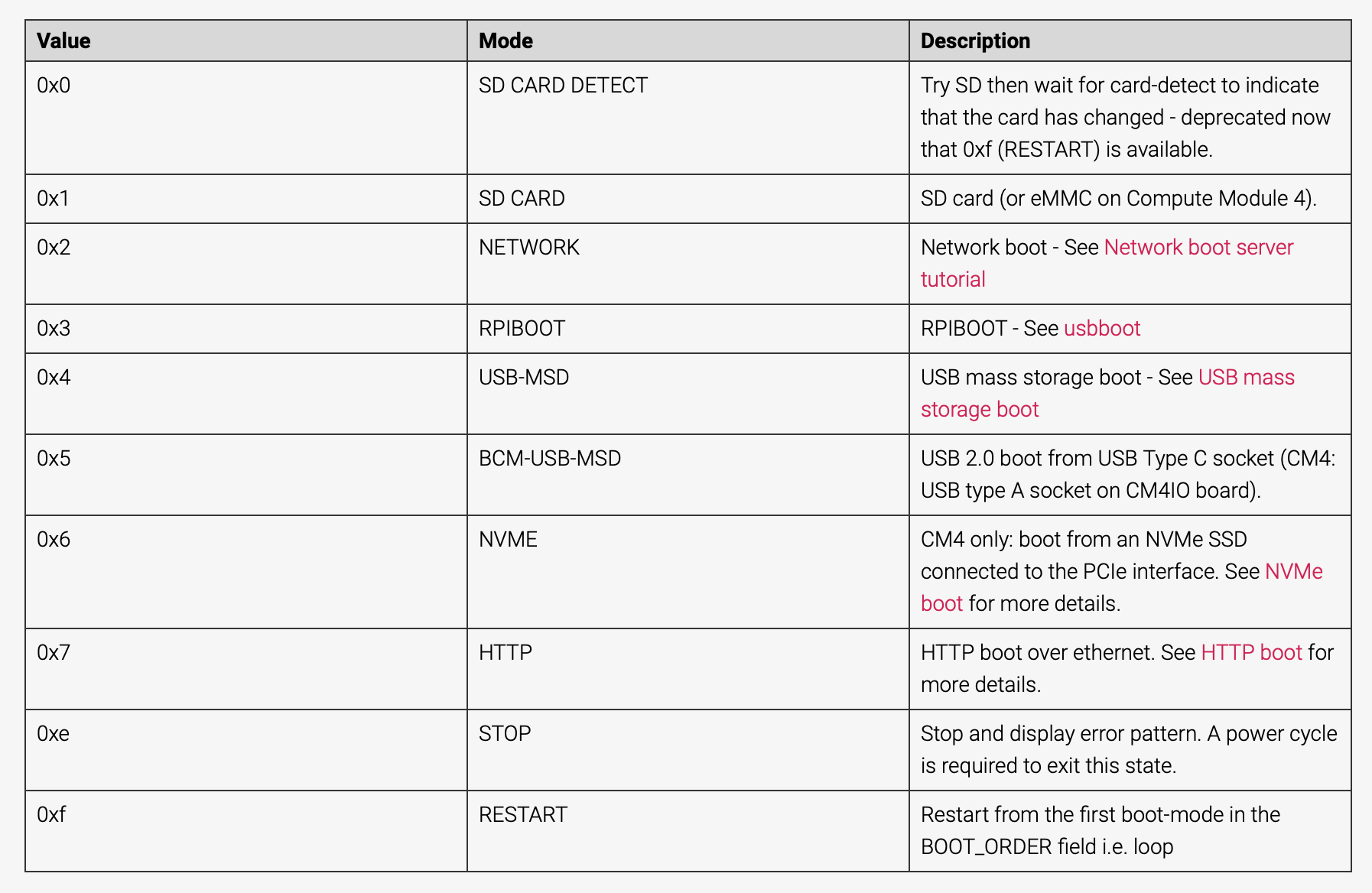
将BOOT_ORDER修改为如下顺序
BOOT_ORDER=0xf25146执行如下3条指令,完成配置
cd recovery
./update-pieeprom.sh
../rpiboot -d .andoq版home assistant使用说明
拿到设备后,将设备通过网线连接到路由器,并通电,大概1分钟后(设备启动时间),在连接了路由器网络(通过网线或WiFi均可,但需要确保电脑和设备连接了同一路由器)的windows端的搜索栏输入cmd并回车,此时进入命令行终端,输入ipconfig查看本机ip地址,如图:

从图中可以看出,本例中的电脑ip为192.168.10.2,网关ip为192.168.10.1,网关也就是家里的路由器,此时在浏览器中输入http://192.168.10.1,则会出现路由器的登录界面,如下图(界面会因不同路由器厂家而不同,但都大同小异):

此时输入路由器密码完成登录,本例中登录完成后如下图,此时可以看到终端设备图标,图中显示有3个设备连接到了路由器,点击终端设备图标,

本例中会出现如下界面,可以看到andoq设备通过有线成功连接到了路由器,路由器分配给andoq的ip地址是192.168.10.6,此时拷贝或记下此ip地址

在浏览器中输入刚才记下的ip地址同时加上端口号8123,具体到本例就是:http://192.168.10.6:8123,需要特别注意的是分号是英文字体,不同用中文,输入完成并回车,此时会出现home assistant(以下简称ha)的登录界面,如下图:

至此,我们已经进入了ha的设置界面,此时作为新设备,我们点击创建我的智能家居,下面就可以正常按提示一步步进行即可。

在家庭位置这一栏,如何你采用了特殊上网,地址会偏离很多国,手工找到自己的位置比较麻烦,此时可以输入城市名和所在区名的拼音,比如北京朝阳,则在地址搜索栏输入beijing chaoyang,回车即可自动定位到北京朝阳,此时再在地图上找到自己的小区和楼栋并将定位标志移到该位置即可。如下图


可以看到,本例中自动出现了更新界面,此时如需更新点击更新按钮即可,不想更新直接跳过

完成更新后,系统会自动重启等待登录,输入之前的用户名和密码即可实现登录

批处理
echo yes | parted /dev/mmcblk1 resizepart 2 100%
resize2fs /dev/mmcblk1p2
df -h | grep -E "File|mmc"树莓派安装 home assistant
ss
http://www.mixdiy.com/wp-content/uploads/2024/01/17692e36090ad09d9e99949ab7095063.jpeg
http://www.mixdiy.com/wp-content/uploads/2024/01/83e2bea4e1a88c399e99ff15b3db1ae7.jpeg
密码保护:打通ipv4访问ipv6设备
cloudflare 使用home assistant 出现400:Bad Request错误的处理
在configuraiton.yaml添加
http:
   # Cloudflare setting to unlock reverse proxy
   use_x_forwarded_for: true
   trusted_proxies:
     - 192.168.0.109
https://community.home-assistant.io/t/issue-with-nginx-reverse-proxy-setup-external-access/321776/8
# Uncomment this if you are using SSL/TLS, running in Docker container, etc.
http:
  ip_ban_enabled: true
  login_attempts_threshold: 5
  use_x_forwarded_for: true
  trusted_proxies:
    - 172.30.33.0/24
取而代之的是:

# Uncomment this if you are using SSL/TLS, running in Docker container, etc.
 http:
  ip_ban_enabled: true
  login_attempts_threshold: 5
  use_x_forwarded_for: true
  trusted_proxies:
    - 172.30.33.0/24
实践解决如下:
nano /usr/share/hassio/homeassistant/configuration.yaml
# Loads default set of integrations. Do not remove.
default_config:

# Load frontend themes from the themes folder
frontend:
  themes: !include_dir_merge_named themes

automation: !include automations.yaml
script: !include scripts.yaml
scene: !include scenes.yaml
 http:
  ip_ban_enabled: true
  use_x_forwarded_for: true
  trusted_proxies:
    - 192.168.0.0/24
    - 127.0.0.1
    - 172.16.0.0/12
    - 172.30.33.0/24
    - 172.30.32.0/23
Cloudflare 免费网站
emmc启动失败后解决方案
故障现象:线刷显示能找到设备并且可以刷成功,但系统无法启动(所有指示灯都不亮)
1、刷系统到sd卡
2、启动sd卡
3、armbian-config


从sd将系统刷入emmc