windows版本(64位)
Linux版本(ubuntu等,执行需修改权限)
https://www.home-assistant.io/docs/mqtt/discovery/
https://www.bilibili.com/read/cv12453670/
https://www.wenjiangs.com/doc/home-assistant-component-mqtt
https://blog.csdn.net/qq_25886111/article/details/108880860
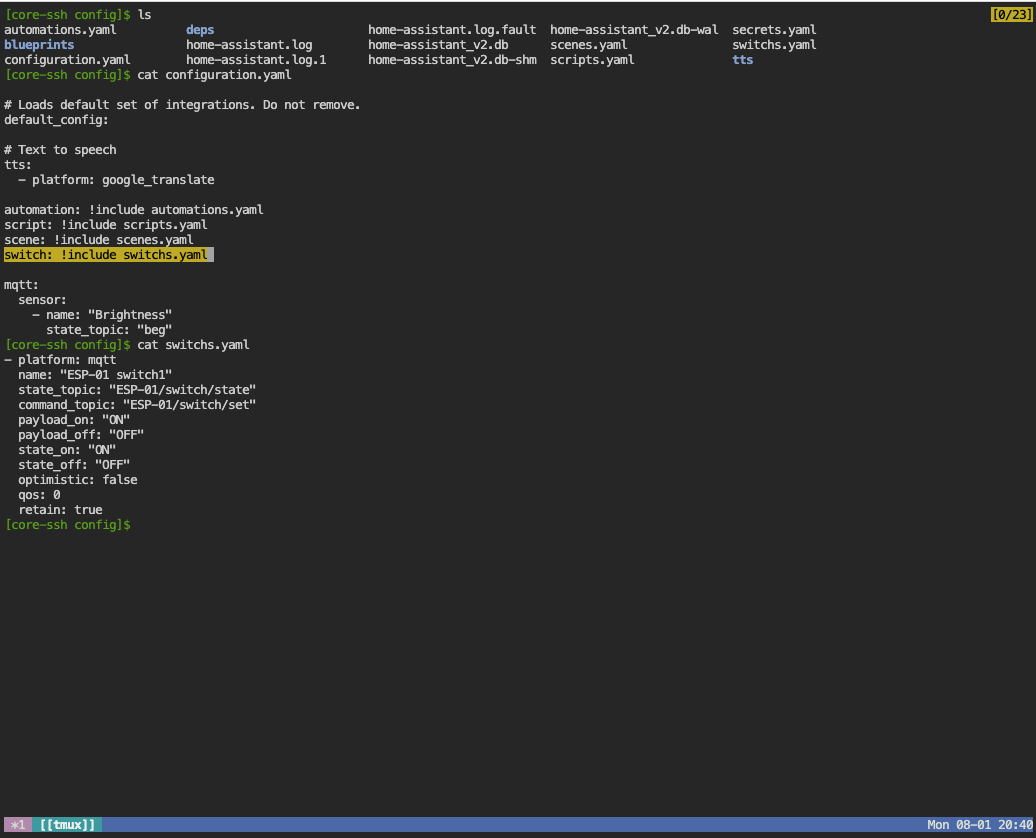
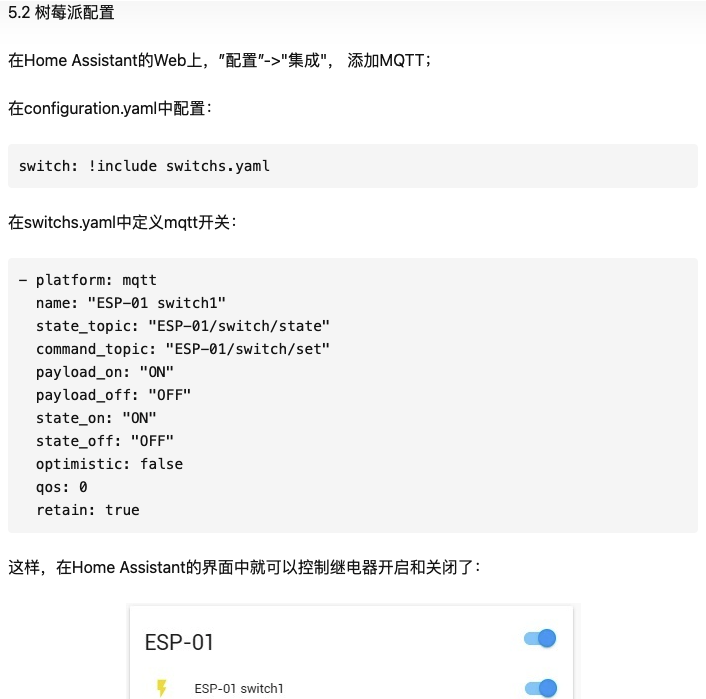
开关
switch:
  - platform: mqtt
    name: "Bedroom Switch"
    state_topic: "home/bedroom/switch1"
    command_topic: "home/bedroom/switch1/set"
    availability_topic: "home/bedroom/switch1/available"
    payload_on: "ON"
    payload_off: "OFF"
    optimistic: false
    qos: 0
    retain: true
变量说明:
name (可选): 名称,英文。默认 MQTT Switch
state_topic (必填): 获取设备值的MQTT topic
command_topic (必填): The MQTT topic to publish commands to change the switch state.
availability_topic (可选): 获取设备 birth&LWT 信息的 MQTT topic。如未指明,则设备的可用状态默认为 available;如指明,则设备的可用状态默认为 available。
payload_on (可选): 代表开启的值,默认 ON
payload_off (可选): 代表开启的值,默认 OFF
payload_available (可选): 代表设备在线状态的值, 如 ‘online’,默认为 ON
payload_not_available (可选): 代表设备离线状态的值, 如 ‘offline’,默认为 OFF
optimistic (可选): 设备是否在理想模式,如果 state_topic 没有定义,默认为 true
qos (可选): 最大 QoS 值,默认 0
retain (可选): 信息发布是否带 retain 标记
value_template (可选): 定制数据生成的模板
cd /home/pi/.config/
mkdir autostart
cd /autostart
sudo nano my.desktop
autostart文件夹中储存的是自启动文件
在新建的my.desktop文件中编辑:
[Desktop Entry]
Type = Application
Exec = chromium-browser "要打开的网页" -kiosk
[Desktop Entry] 文件头:Desktop Entry文件是Linux 桌面系统中标准的程序启动配置描述方式。Exec 执行的命令:chromium-browser用浏览器打开 -kiosk选项 则是全屏打开(Ctrl+F4退出全屏)
编辑/etc目录下的profile文件。

sudo nano /etc/profile

#在这个文件的顶部 输入chromium可执行文件的绝对路径,正常为:

/usr/lib/chromium-browser/chromium-browser  --disable-popup-blocking --no-first-run --disable-desktop-notifications  --kiosk --incognito "http://www.baidu.com/"

#其中kiosk为全屏选项步骤
1.打开lightdm.conf
sudo nano /etc/lightdm/lightdm.conf
2.修改lightdm.conf
找到 [SeatDefaults] 段下的 ’xserver-command’, 取消注释 , 修改如下:
xserver-command=X
修改为
xserver-command=X -s 0 -dpms
-s # –设置屏幕保护不启用
dpms 关闭电源节能管理
3.重启
reboot
wget http://www.mixdiy.com/wp-content/uploads/2022/08/update-upgrade32.shwget http://www.mixdiy.com/wp-content/uploads/2022/07/update-upgrade64bit-1.sh --no-check-certificate
google pinyin
curl -L http://www.mixdiy.com/wp-content/uploads/2022/07/update-upgrade64bit-1-2.sh | sudo bash
舵机防抖控制
import RPi.GPIO as GPIO
import time
GPIO.setmode(GPIO.BCM)
signal = 18
GPIO.setup(signal, GPIO.OUT)
frequency = 50
pwm = GPIO.PWM(signal, frequency)
def get_duty(direction):
    duty = (1/18)*direction + 2.5
    return duty

if __name__ == '__main__':
    try:
        pwm.start(0)
        while True:
            direction = float(input("Please input a direction between 0 and 180:"))
            duty = get_duty(direction)
            pwm.ChangeDutyCycle(duty)
            time.sleep(0.04)     #防抖
            pwm.ChangeDutyCycle(0)     #防抖
    except Exception as e:
        print('An exception has happened',e)
    finally:
        pwm.stop()
        GPIO.cleanup()
修正角度
import RPi.GPIO as GPIO
import random
import time
GPIO.setmode(GPIO.BCM)
signal = 18
GPIO.setup(signal, GPIO.OUT)
frequency = 50
pwm = GPIO.PWM(signal, frequency)
def get_duty(direction):
    duty = (1/18)*direction + 2.5
    return duty

if __name__ == '__main__':
    try:
        pwm.start(0)
        while True:
            direction = float(input("Please input a direction between 0 and 180:"))
#            direction =  random.randint(0,0)
            print(direction)
            duty = get_duty(direction)
            for i in range(1,20):
                pwm.ChangeDutyCycle(duty)
                time.sleep(0.04)
            pwm.ChangeDutyCycle(0)
    except Exception as e:
        print('An exception has happened',e)
    finally:
        pwm.stop()
        GPIO.cleanup()
一、国内常用pip镜像源
http://pypi.douban.com/simple/ 豆瓣
http://mirrors.aliyun.com/pypi/simple/ 阿里
http://pypi.hustunique.com/simple/ 华中理工大学
http://pypi.sdutlinux.org/simple/ 山东理工大学
http://pypi.mirrors.ustc.edu.cn/simple/ 中国科学技术大学
https://pypi.tuna.tsinghua.edu.cn/simple/ 清华大学
http://pypi.hustunique.com/ 华中科技大学
http://mirrors.cloud.tencent.com/pypi/simple 腾讯
https://repo.huaweicloud.com/repository/pypi/simple/ 华为
二、使用方法(pip安装):
示例代码(安装requests库):
pip install -i http://pypi.douban.com/simple/ requests
若遇到信任问题可添加参数,如
pip install requests -i http://pypi.douban.com/simple/ --trusted-host pypi.douban.com

永久修改pip源方法
Windows:新建 pip.ini 文件存放在 User\pip\pip.ini
Linux:新建pip.conf文件存放在 ~/.pip/pip.conf
内容如下
[global]
trusted-host=mirrors.aliyun.com
index-url=http://mirrors.aliyun.com/pypi/simple/